Tutorials
·

Most yearly calendars in Google Sheets are typed by hand, which means rebuilding them every January. With a few formulas you can make one that rebuilds itself when you change a single cell. Change 2026 to 2027 and every date, weekday and highlight moves to the right place.
Quick answer: To make an automatic yearly calendar in Google Sheets, put the year in one cell, calculate the first date shown in each month’s grid with
=DATE(year,month,1)-WEEKDAY(DATE(year,month,1),2)+1, then fill a 6 by 7 grid with=SEQUENCE(6,7,start)formatted to show only the day. Use conditional formatting to grey out other months and highlight today. Prefer it ready-made? Year at a Glance has all of this built in.
Step 1: Set up the control cells
In A1 type Year and in B1 enter 2026.
In A2 type Week start and in B2 enter 2 for Monday or 1 for Sunday.
In A3 type Start month and in B3 enter 1 for January. Use 9 if your year runs September to August.
These three cells control the whole calendar.
Step 2: Build the first month
Month title. In D1 enter
=EDATE(DATE($B$1,$B$3,1),0). Format it with Format > Number > Custom date and time to show the month name, such as November.Weekday headers. In D2 to J2 type M, T, W, T, F, S, S for a Monday start, or S, M, T, W, T, F, S for Sunday.
The date grid. In D3 enter
=SEQUENCE(6,7,D1-WEEKDAY(D1,$B$2)+1). This fills six weeks of seven days, starting on the Monday or Sunday before the first of the month.Show only the day number. Select D3:J8 and set a custom number format of d.
WEEKDAY with type 2 counts Monday as 1, and with type 1 counts Sunday as 1, which is why the same formula works for both week starts.
Step 3: Copy it for all 12 months
Copy the block D1:J8 and paste it eleven times, in a grid three or four months wide. In each copy, change the 0 in the month title formula to 1, 2, 3 and so on, up to 11. Because each grid reads its own title cell, every month updates itself.
Step 4: Make it look like a real calendar
Grey out other months. Select the first grid, open Format > Conditional formatting, choose Custom formula is and enter
=MONTH(D3)<>MONTH($D$1)with light grey text. Repeat for each month, pointing to its own title cell.Highlight today. Add a rule with
=D3=TODAY()and a bold color.Shade weekends. For a Monday start,
=WEEKDAY(D3,2)>5with a soft fill.Highlight holidays and birthdays. List dates on a tab called Holidays in column A. Conditional formatting can’t read other tabs directly, so use INDIRECT:
=COUNTIF(INDIRECT("Holidays!A2:A"),D3)>0.
Step 5: Add a year progress bar
In a spare cell, =MAX(0,MIN(1,(TODAY()-DATE($B$1,1,1)+1)/(DATE($B$1,12,31)-DATE($B$1,1,1)+1))) shows how much of the year has passed. Wrap it in a bar with =SPARKLINE(L1,{"charttype","bar";"max",1}).
Now change B1 to 2027 and watch every month rebuild.
Troubleshooting
Seeing numbers like 46023? Those are dates without a date format. Apply the custom format d to the grid.
SEQUENCE shows #REF!. Something is typed inside the grid area. Clear the 6 by 7 range so the formula can spill.
Holiday highlights not working. Check that the Holidays tab holds real dates, not text, and that the INDIRECT range matches the tab name.
Week starts on the wrong day. Make sure B2 is 1 for Sunday or 2 for Monday, and that your header letters match.
Skip the build: Year at a Glance
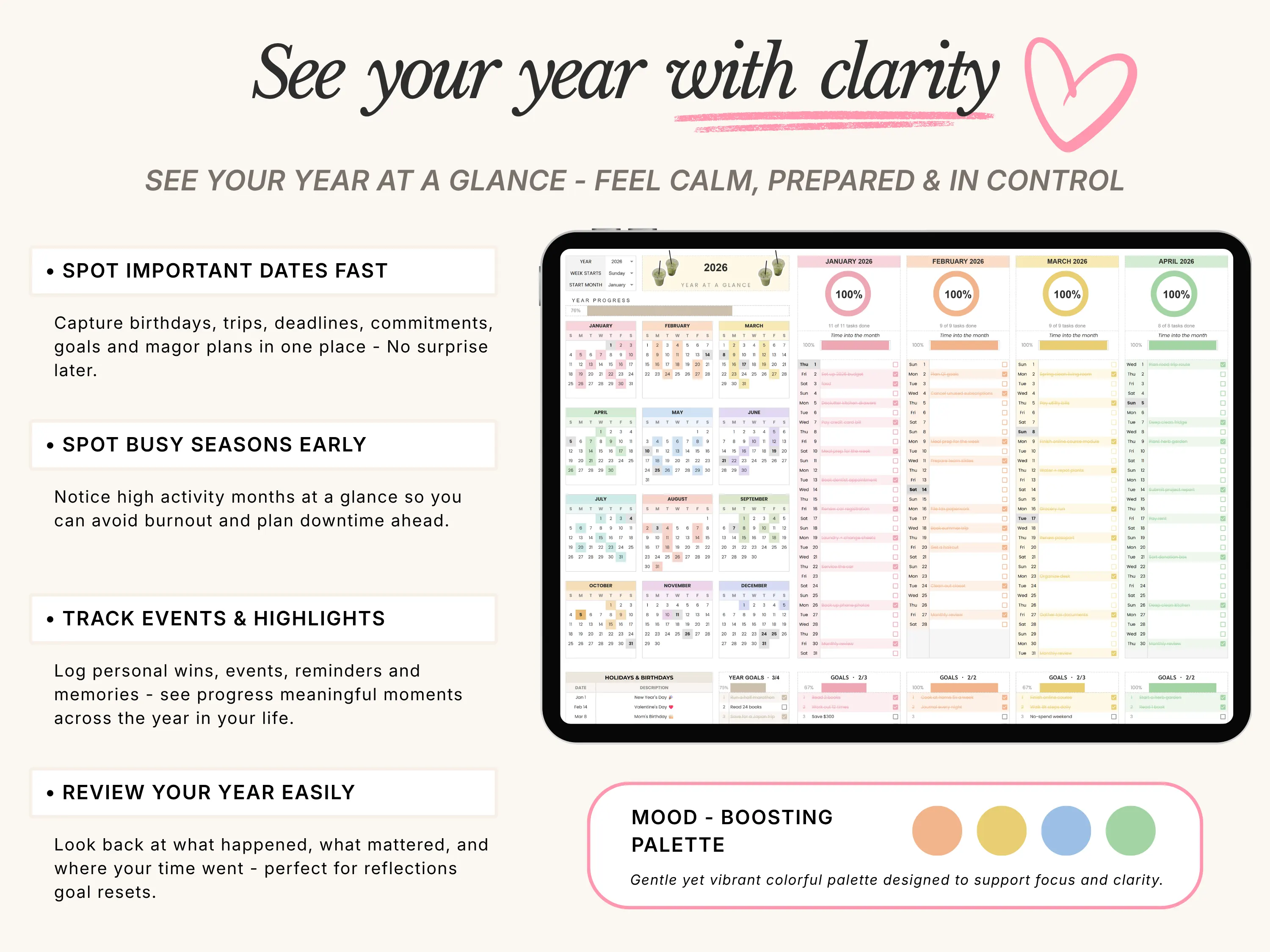
If you’d rather start planning than building, Year at a Glance does all of this and more. Pick the year from a dropdown and every calendar rebuilds itself. Choose a Sunday or Monday start, start your year in any month and change any color.
Beyond the calendar, the mini calendars color themselves when you tick a task or log an event, holidays and birthdays appear in grey from your list, each month has a progress ring and goals, reminders and events sections, and five ready-made years cover 2026 to 2030. It’s a one-time $6.
For how to use a calendar like this to plan your whole year, read our guide to the year at a glance calendar, and for setting targets, see how to track yearly goals in Google Sheets.
Frequently asked questions
How do I make a calendar in Google Sheets that updates automatically?
Put the year in one cell, calculate each month’s first grid date with DATE and WEEKDAY, and fill the grid with SEQUENCE. Changing the year updates every date.
How do I start the calendar week on Monday in Google Sheets?
Use WEEKDAY with type 2, which treats Monday as day 1: =D1-WEEKDAY(D1,2)+1.
How do I highlight holidays on a Google Sheets calendar?
List the dates on another tab and use conditional formatting with =COUNTIF(INDIRECT("Holidays!A2:A"),D3)>0.
Does Google Sheets have a yearly calendar template?
Yes, the template gallery includes an annual calendar. Building your own with formulas makes it update automatically every year.
Can I start my calendar year in September?
Yes. Set the start month cell to 9 and each month block uses EDATE to count forward from there.
The bottom line
An automatic yearly calendar in Google Sheets only needs three control cells, DATE, WEEKDAY and SEQUENCE. Build it once and it works every year. Or get a ready-made version with goals, events and self-coloring calendars in Year at a Glance. New here? Enter code WELCOME20 at checkout for 20% off your first order.