Tutorials
·

You can build a working habit tracker in Google Sheets in about 20 minutes. The tricky part is the formulas. Many tutorials online count text like an X or a tick mark, which won't work once you switch to real checkboxes. This guide uses formulas built for checkboxes, so your percentages and streaks count correctly from day one.
Quick answer: To make a habit tracker in Google Sheets, list habits in column A, put the month’s dates across row 1, insert checkboxes in the grid and count ticks with
=COUNTIF(B2:AF2,TRUE). Divide by your goal for a percentage, add a SPARKLINE progress bar, and use a helper row with=IF(C2,B14+1,0)to count streaks. Prefer it ready-made? Habit Tracker Pro has all of this built in.
Step 1: Set up the grid
List your habits. Type Habit in A1 and your habits in A2 to A11.
Add the dates. In B1 enter
=DATE(2026,11,1)for the first day of the month. In C1 enter=B1+1and fill right to AF1.Show day numbers. Select B1:AF1 and use Format > Number > Custom date and time to show only the day, such as 1, 2, 3.
Insert checkboxes. Select B2:AF11 and choose Insert > Checkbox.
For shorter months, the last columns will show the first days of the next month. Hide them, or grey them out with the conditional formatting in step 5.
Step 2: Count completions and set goals
Done. In AG1 type Done, then in AG2 enter
=COUNTIF(B2:AF2,TRUE)and fill down. Checkboxes return TRUE when ticked, so this counts every completed day.Goal. In AH1 type Goal and enter a target for each habit, such as 30 for daily habits or 12 for three times a week.
Progress. In AI2 enter
=MIN(1,AG2/AH2)and format as a percentage.Progress bar. In AJ2 enter
=SPARKLINE(AI2,{"charttype","bar";"max",1})for a small bar that fills as you go.
Step 3: Track daily completion
Below the grid, in B12, enter =COUNTIF(B2:B11,TRUE)/COUNTA($A$2:$A$11) and fill right. This shows what share of your habits you completed each day. Select B12:AF12 and choose Insert > Chart for a daily progress chart.
Step 4: Add streaks that work with checkboxes
Streaks need a helper row for each habit. For the first habit, use row 14:
In B14 enter
=IF(B2,1,0).In C14 enter
=IF(C2,B14+1,0)and fill right to AF14. Each ticked day adds one to the day before, and an unticked day resets to zero.Longest streak:
=MAX(B14:AF14).Current streak:
=IFERROR(INDEX(B14:AF14,MATCH(TODAY(),B1:AF1,0)),0)returns today’s streak.
Repeat the helper row for each habit, or keep the helper rows on a hidden tab to keep your tracker clean.
Step 5: Make it visual
Color ticked days. Select B2:AF11, open Format > Conditional formatting, choose Custom formula is and enter
=B2=TRUE. Pick a soft fill color.Highlight today. Add a second rule with
=B$1=TODAY()and a border or light color.Grey out the next month. Use
=MONTH(B$1)<>MONTH($B$1)with grey text for dates that spill into the following month.Freeze panes. View > Freeze > 1 row and 1 column keeps habits and dates in view on small screens.
Step 6: Copy it for every month
Right-click the tab, choose Duplicate and change the date in B1 to the first of the next month. Everything else updates. For a yearly summary, add a tab that pulls each month’s done and goal totals with simple references like ='Nov'!AG2.
Common habit tracker formula mistakes
Counting “X” or a tick symbol.
=COUNTIF(B2:AF2,"X")returns zero with checkboxes. Count TRUE instead.Dividing by 31 every month. Use a goal column, or count the days in the month with
=DAY(EOMONTH(B1,0)).Streak formulas without a reset. A streak must drop to zero on a missed day, which the IF in step 4 handles.
Formulas in the checkbox range. Keep formulas out of the grid you tick, or checkboxes can break.
Want it done for you?
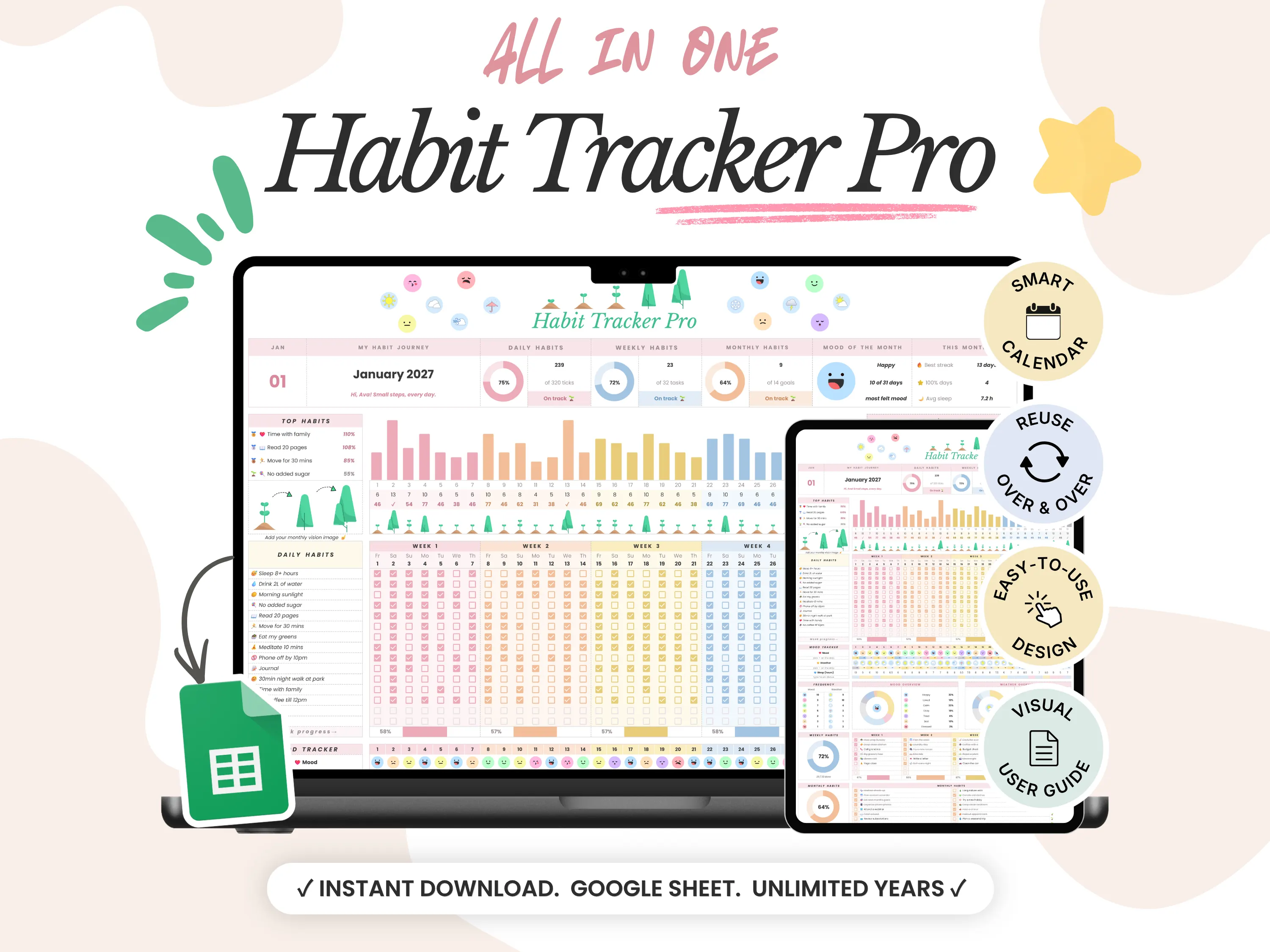
Building your own is a great way to learn. If you’d rather start tracking today, Habit Tracker Pro includes everything above plus a lot more: 12 monthly tabs with up to 15 habits each, goal, done, percentage, streak and a progress bar for every habit, top habits ranked automatically, weekly, monthly and yearly habits, mood, weather and sleep tracking, and a habit tree that grows through five stages as your percentage climbs. It’s a one-time $9 with a yearly dashboard included.
To see what a full tracker can do, read our overview of the Google Sheets habit tracker template.
Frequently asked questions
How do I add checkboxes in Google Sheets?
Select the cells and choose Insert > Checkbox. A ticked box returns TRUE and an empty one returns FALSE.
How do I count checked boxes in Google Sheets?
Use =COUNTIF(range,TRUE). To get a percentage, divide by the number of habits or your goal.
How do I calculate a habit streak in Google Sheets?
Use a helper row where each cell is =IF(ticked,previous+1,0). MAX gives your longest streak and the value for today gives your current one.
Can I make the tracker change color when I tick a box?
Yes. Use conditional formatting with the custom formula =B2=TRUE on your checkbox range.
Will this work on the Google Sheets mobile app?
Yes. Checkboxes, formulas and conditional formatting all work in the app.
The bottom line
A Google Sheets habit tracker only needs four ingredients: checkboxes, COUNTIF, a progress bar and a streak helper row. Build it once, duplicate it each month and you have a free tracker that counts correctly. Or skip the setup with Habit Tracker Pro. New here? Enter code WELCOME20 at checkout for 20% off your first order.