Organization
·

A weekly plan is where good intentions turn into a real schedule. A day is too short to show the big picture and a month is too long to act on, so the week is the sweet spot. Here's how to plan one in Google Sheets so it stays useful past Wednesday.
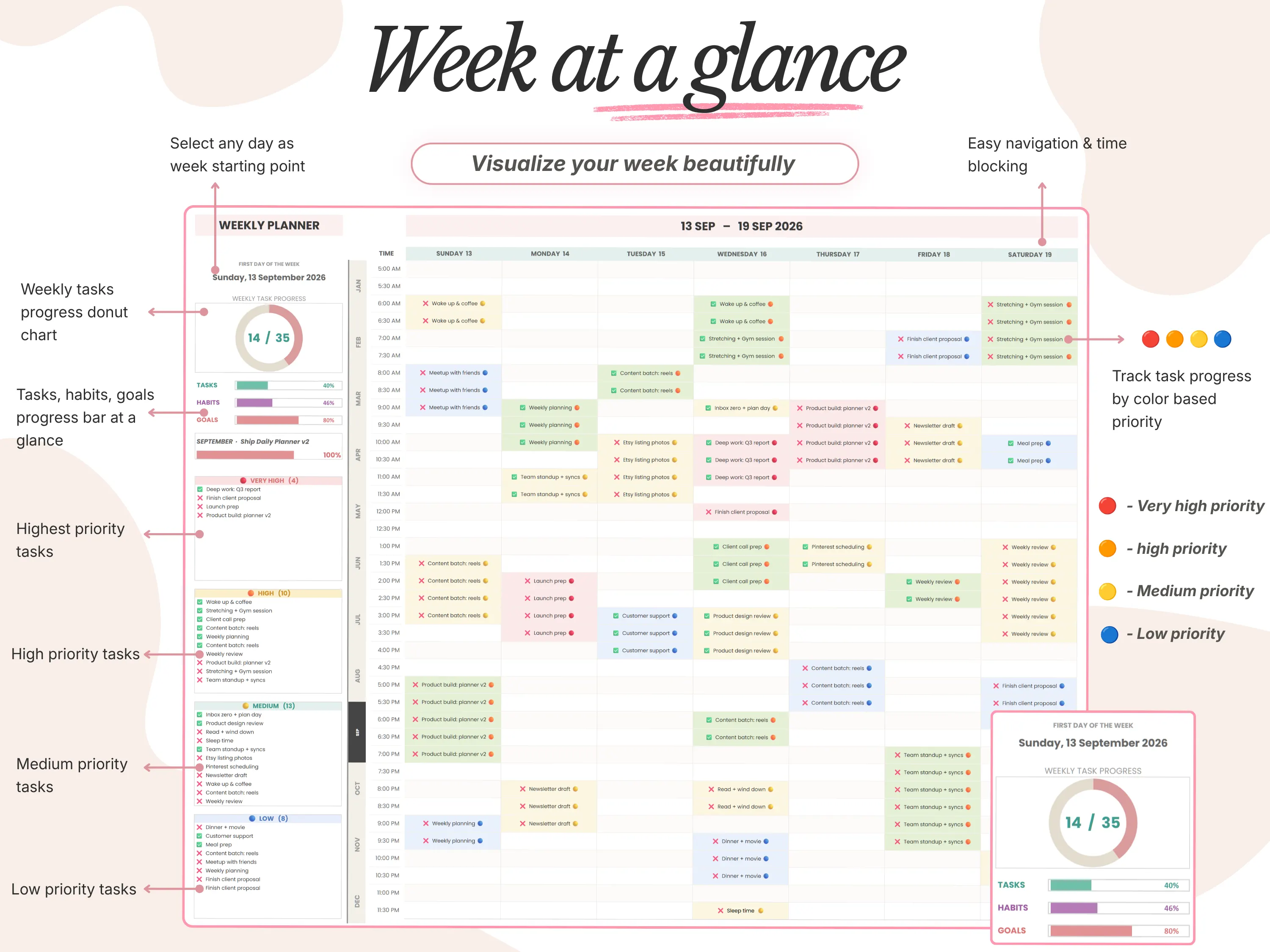
Quick answer: A good Google Sheets weekly planner shows seven days side by side, groups tasks by priority, and tracks progress for tasks, habits and goals in one place. Plan it on Sunday in 20 minutes and review it on Friday. The 26/27 Daily Planner includes a time-blocked Week at a Glance with four priority levels and weekly progress charts.
Why plan by the week?
Daily lists are good for doing, but they can’t tell you whether your week went well. A weekly plan lets you spread big tasks across days, spot the overloaded Tuesday before it happens and protect time for things that never feel urgent, like exercise or a side project.
It’s also the easiest review habit to keep. Fifteen minutes on a Friday tells you more than any amount of daily list-making.
What a Google Sheets weekly planner should include
Seven days side by side, starting on the day your week actually starts.
Priority levels, so important work doesn’t drown in small tasks.
Time slots for days that are tightly scheduled.
Habits for the week, with a simple tick for each day.
Progress you can see, such as a percentage or chart for tasks done.
Room for a short review: what went well, what didn’t and what changes next week.
How to make a weekly planner in Google Sheets
Set the week start. In B1 enter the first day of your week. To always show the current week starting on Monday, use
=TODAY()-WEEKDAY(TODAY(),2)+1.Add the seven days. In B2 enter
=B1, in C2 enter=B2+1and fill right to H2. Format the row as a date, for example through Format > Number > Custom date and time.Create task rows. Under each day leave 8 to 10 rows for tasks, with a checkbox column beside each through Insert > Checkbox.
Add a priority dropdown. Use Data > Data validation with options like Very high, High, Medium and Low, then color them with conditional formatting.
Track progress. A cell with
=COUNTIF(C4:C13,TRUE)/COUNTA(B4:B13)shows a day’s completion rate. Average the seven days for the week.Add a habit strip. List three to five habits with a checkbox under each day.
Leave space for review. Three short boxes: wins, lessons and next week’s focus.
A 20-minute Sunday planning routine
Look back, 5 minutes. What didn’t get done last week? Move it, hand it off or drop it.
Check your calendar, 3 minutes. Add fixed commitments first.
Choose 3 weekly priorities, 5 minutes. The outcomes that would make the week a success.
Spread the work, 5 minutes. Assign tasks to days, putting the hardest work on your lightest days.
Set your habits, 2 minutes. Pick the few you’ll track this week.
Inside the 26/27 Daily Planner’s weekly view
The 26/27 Daily Planner is built around this routine. Week at a Glance gives you a full time-blocked week that can start on any day you choose. Tasks are grouped into very high, high, medium and low priority lists, so you always know what comes first.
Weekly progress shows as a donut chart, with separate progress bars for tasks, habits and goals. The monthly calendar fills itself with your tasks once you pick the month, year and week start, and finished tasks are ticked off there too.
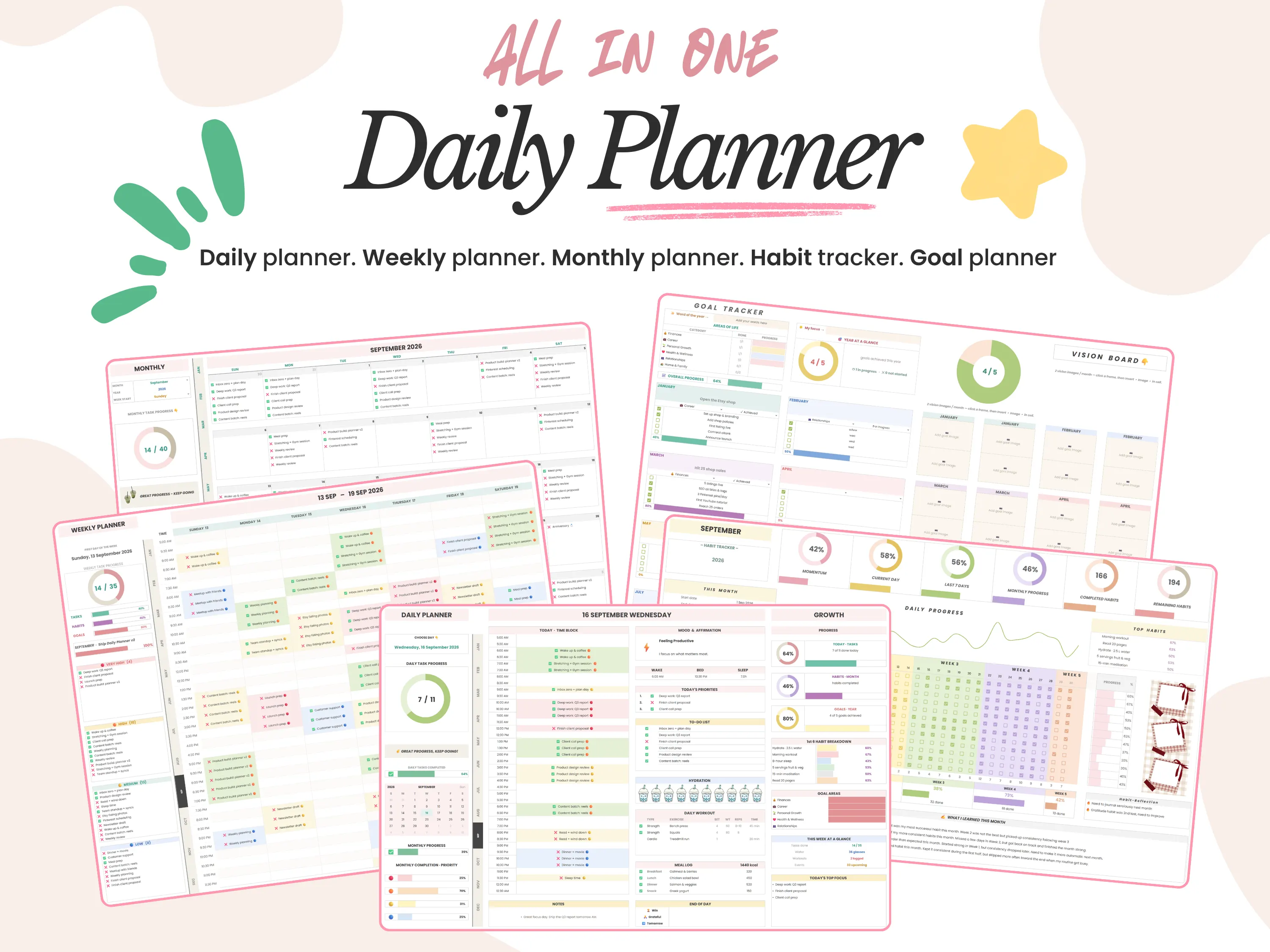
Because it’s one connected file, the tasks you plan for the week also appear on the daily dashboard and in your monthly view. You type once and see it everywhere.
Weekly planner vs. daily planner vs. monthly calendar
Daily planner: Best for hour-by-hour scheduling and today’s top 3.
Weekly planner: Best for balancing workload and keeping priorities visible for seven days.
Monthly calendar: Best for deadlines, events and spotting busy stretches early.
Most people need all three, which is why connected planners are popular: one entry shows up in every view. If you mostly plan day by day, our guide to the Google Sheets daily planner covers that side.
Mistakes that make weekly plans fail
Planning 40 hours of tasks for 25 free hours. Count your real free time first.
No priorities. If everything is high priority, nothing is.
Skipping the review. Without it, the same tasks roll forward every week.
Starting the week on the wrong day. If your week really starts on Sunday, set it that way.
Frequently asked questions
Does Google Sheets have a weekly planner template?
Yes. The Google Sheets template gallery includes a simple weekly schedule. It’s a grid of time slots without priorities or progress tracking, so many people build on it or use a dedicated planner.
How do I make a weekly planner update automatically?
Use a start-date formula such as =TODAY()-WEEKDAY(TODAY(),2)+1 for a Monday start, then add 1 for each following day. The dates change every week on their own.
Can my week start on Sunday?
Yes. Use =TODAY()-WEEKDAY(TODAY(),1)+1 for a Sunday start. The 26/27 Daily Planner lets you choose any start day.
Can I track habits in a weekly planner?
Yes. Add a row of checkboxes for each habit under the seven days, or use a planner with monthly habit trackers built in.
Does it work on iPad and phone?
Yes, through the Google Sheets app. Planning is easier on a bigger screen.
The bottom line
A weekly planner in Google Sheets gives you the big picture without losing the detail: seven days side by side, clear priorities and progress you can see. Build one with the steps above, or use the 26/27 Daily Planner to get weekly, daily and monthly views already connected. New here? Enter code WELCOME20 at checkout for 20% off your first order.