Organization
·

Planning on paper feels great until a task moves and you rewrite the whole page. A daily planner in Google Sheets keeps the familiar planner layout, moves things for you and shows your progress as you go.
Quick answer: A Google Sheets daily planner is a spreadsheet that holds your schedule, priorities and to-dos for each day, and links them to weekly and monthly views so you only enter things once. The best ones use time blocks, a short top 3 priority list, checkboxes and progress that updates on its own. The 26/27 Daily Planner does all of this across 18 connected tabs for a one-time $12.
What is a Google Sheets daily planner?
A daily planner in Google Sheets works like a paper planner page, except the sheet does the adding up for you. You type a task once, tick it when it’s done, and the weekly and monthly views update. It runs in your browser and in the Google Sheets app, so the same plan is on your laptop and your phone. All you need is a free Google account.
Most people look for one after trying two other options. Paper planners are lovely to write in but can’t move tasks forward or show progress. Planner apps are powerful but often come with a subscription and a learning curve. A spreadsheet sits in the middle: familiar, flexible and yours to keep.
What a good daily planner template should include
Most free templates you’ll find are a single grid of hours and a to-do list. That’s a fine start, but these are the parts that turn a planner into something you keep using:
Time blocks you can set yourself. Not everyone’s day starts at 9:00, so look for custom start and end times.
A top 3 priority list. Three things that must happen today, kept apart from the long to-do list.
Checkboxes instead of typing. One click to mark something done keeps the habit easy.
Progress that updates itself. A bar or percentage that fills as you tick tasks off.
Links to your week and month. Tasks and events should appear on weekly and monthly views without copying them.
Space for the rest of your day. Notes, mood, water, sleep or a short end-of-day reflection, if you want them.
Room to grow. Habits and goals in the same file, so you don’t juggle three separate trackers.
How to set up a daily planner in Google Sheets (10 minutes)
If you’re starting from a template, setup is mostly choosing your settings. Here’s the order we suggest:
Make your copy. Open the template link and choose File > Make a copy, so the planner saves to your own Google Drive.
Pick your dates. Choose the year, the month and the day your week starts. Calendars and date labels rebuild from these.
Set your day’s hours. Enter when your day starts and ends so the time blocks match your real routine.
Add recurring tasks and habits. Anything you do every week goes in once.
Plan tomorrow tonight. Fill in tomorrow’s top 3 and time blocks before you close the laptop. It takes five minutes and makes mornings easier.
Building your own instead? Start with one tab. Put times in column A, with =TIME(7,0,0) in A2 and =A2+TIME(0,30,0) in A3 filled down. Add a task column next to it and a checkbox column through Insert > Checkbox. Your completion rate is one formula: =COUNTIF(C2:C33,TRUE)/COUNTA(B2:B33), formatted as a percentage.
A simple daily planning routine
A planner only helps if the routine around it is light. This is the routine we recommend:
Evening, 5 minutes: Pick tomorrow’s top 3, then block time for them first. Fill the gaps with smaller tasks.
Morning, 2 minutes: Check the plan, move anything that no longer fits and set one focus for the day.
During the day: Tick tasks as you finish them. Don’t rebuild the plan every hour. Adjust once at lunch if you need to.
End of day, 3 minutes: Note one win, one thing you’re grateful for and what moves to tomorrow.
Once a week, look at the weekly view. It shows which priorities keep slipping, and that’s usually the most useful thing a planner can tell you.
Inside the 26/27 Daily Planner
We built the 26/27 Daily Planner for people who want the whole picture in one Google Sheet. It has 18 connected tabs that update each other as you fill them in.
Plan your day
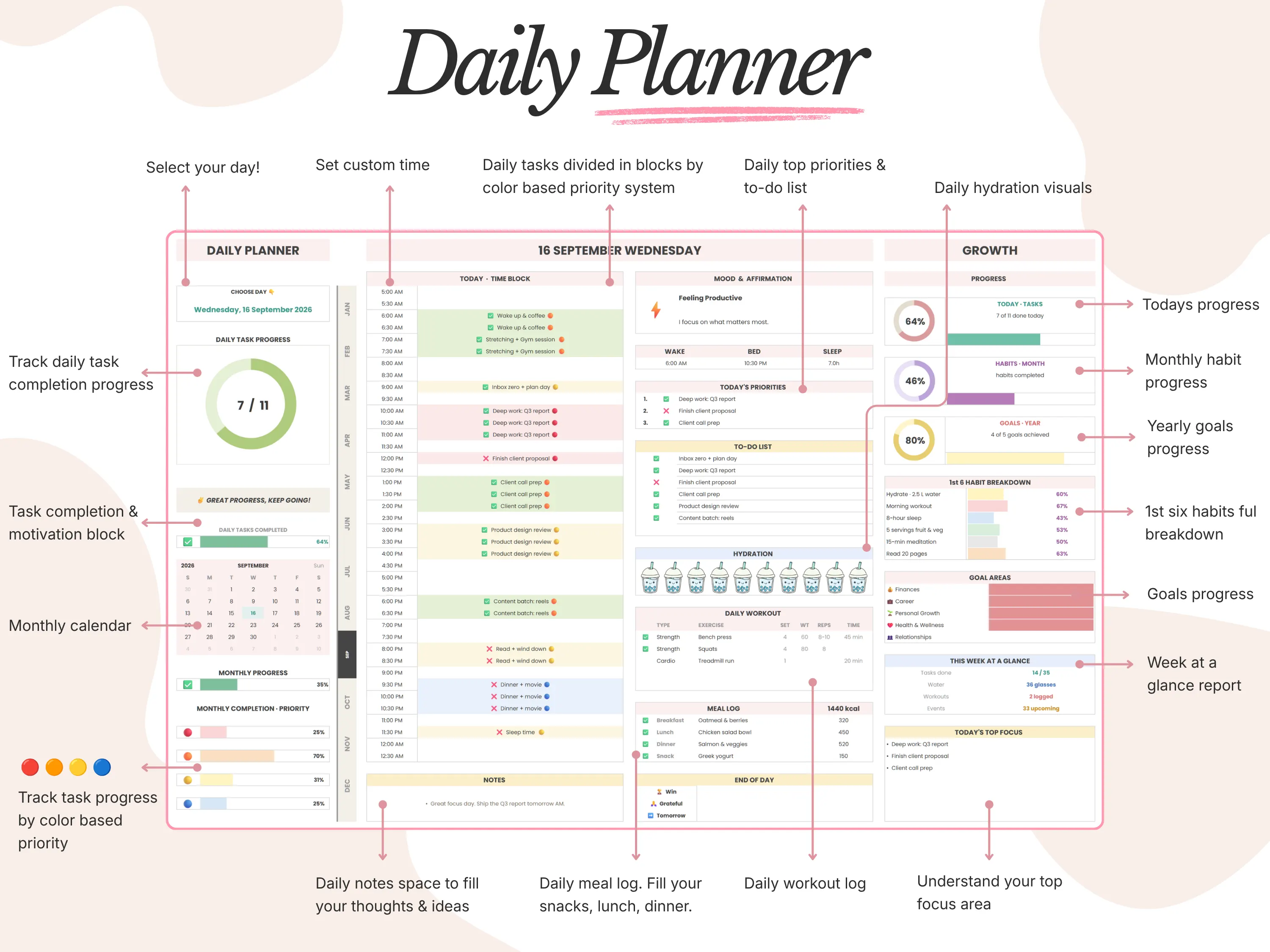
The daily dashboard shows any day’s time blocks, top 3 priorities, to-do list and progress on one page. You set your own start and end times, and every block is color-coded by priority. There’s also room for mood, an affirmation, wake-up and bed times, water, workouts, meals and an end-of-day note with a win and something you’re grateful for.
Plan your week and month
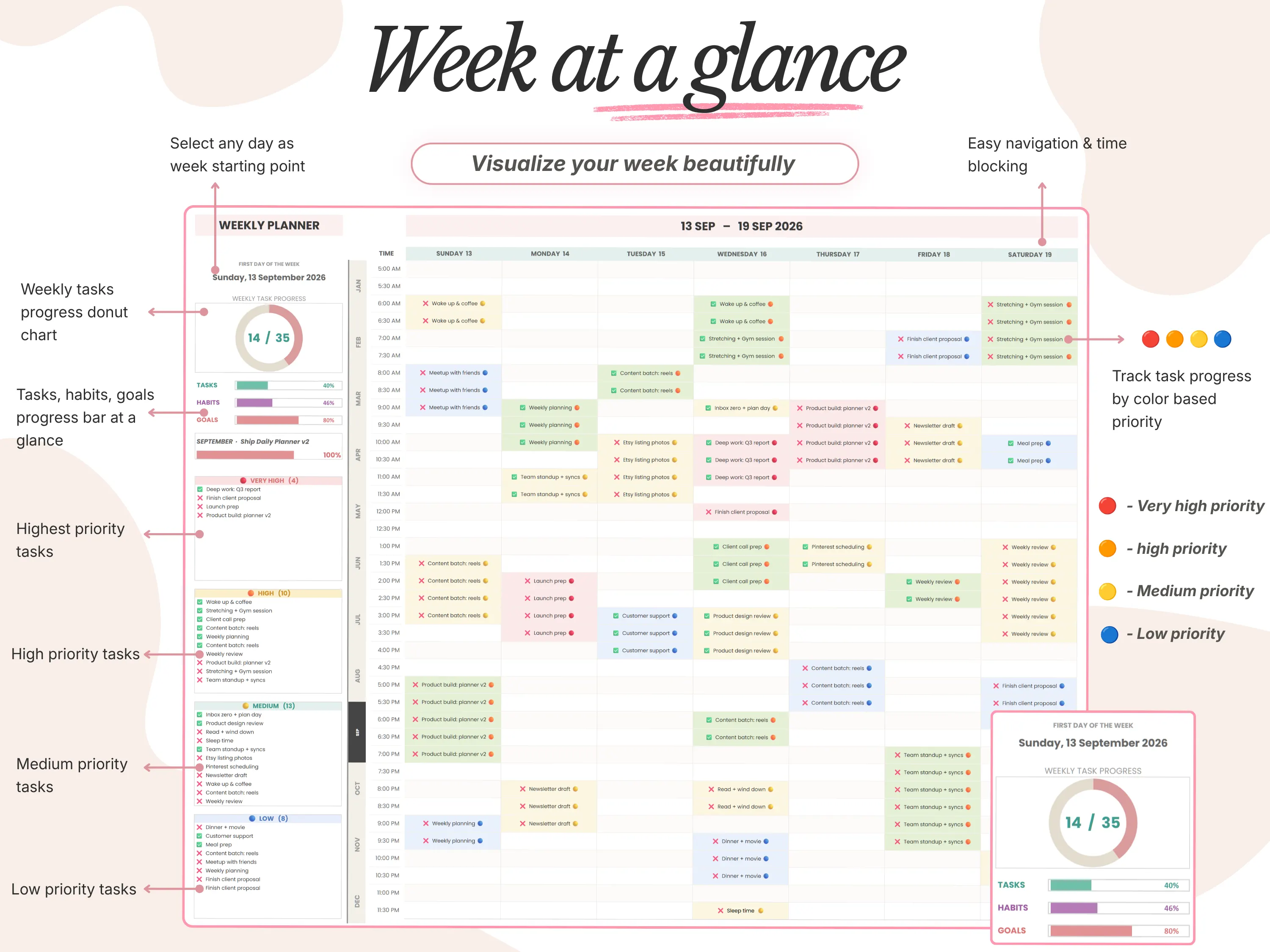
Week at a Glance gives you a time-blocked week that can start on any day. Tasks are grouped into four priority levels, and a donut chart plus progress bars show how the week is going. The monthly calendar fills itself with your tasks once you pick the month, year and week start, and today’s date is highlighted for you.
Habits and goals in the same file
There are 12 monthly habit trackers with up to 12 habits each, with rings for momentum, the last 7 days and the whole month. Goals and a vision board live in the same sheet, so your daily tasks connect to what you want from the year.
Google Sheets planner vs. paper vs. apps
vs. a paper planner: Paper is nice to write in, but tasks don’t roll forward and nothing adds up. A sheet keeps the planner look and does the counting.
vs. a planner app: Apps can sync calendars and send reminders, but many charge every month. This is a one-time $12 and the file is yours.
vs. Notion: Notion suits people who like databases and linked pages. If you prefer a grid, Google Sheets is quicker to learn. Our guide on Google Sheets vs. Notion compares the two.
Common mistakes to avoid
Planning every minute. Leave a buffer block or two. A plan with no slack breaks by mid-morning.
A to-do list with no priorities. Twenty equal tasks means nothing is important. Keep the top 3 separate.
Planning without reviewing. The weekly view is where you learn what to change.
Too many trackers on day one. Start with tasks and priorities. Add habits, mood and water once the routine sticks.
What buyers say
The 26/27 Daily Planner is rated 5.0/5, and we’ve sold over 45,000 templates across our shop.
“Pretty pastel design and simple layout. It’s great for daily planning & tracking habit.”
Emma J., verified buyer
Frequently asked questions
Is there a daily planner template for Google Sheets?
Yes. Google Sheets has a few basic schedule and to-do templates in its gallery, and many free and paid planners are shared online. Basic templates give you a single schedule. Planners like the 26/27 Daily Planner link daily, weekly and monthly views with habits and goals.
Can I use a Google Sheets planner on my phone?
Yes. Open it in the free Google Sheets app on iPhone or Android. Setup is easiest on a laptop, and daily ticking works well on a phone.
Do I need a paid Google account?
No. A free Google account is all you need.
Does the planner cover 2027?
Yes. The 26/27 Daily Planner covers 2026 and 2027, and you choose the month, year and week start yourself.
Can I change the colors and layout?
Yes. It’s your own copy, so you can edit colors, labels and tabs.
The bottom line
A good Google Sheets daily planner is simple on the surface and connected underneath: time blocks, a short priority list, one-click checkboxes and progress that updates itself. Build a basic one with the formulas above, or start with the 26/27 Daily Planner and be planning in ten minutes. New here? Enter code WELCOME20 at checkout for 20% off your first order.