Tutorials
·

Time blocking is the simplest way to stop a to-do list from eating your whole day. Instead of a list you hope to get through, every task gets a slot on the clock. Google Sheets is a surprisingly good place to do it, because the grid is already a calendar waiting to happen.
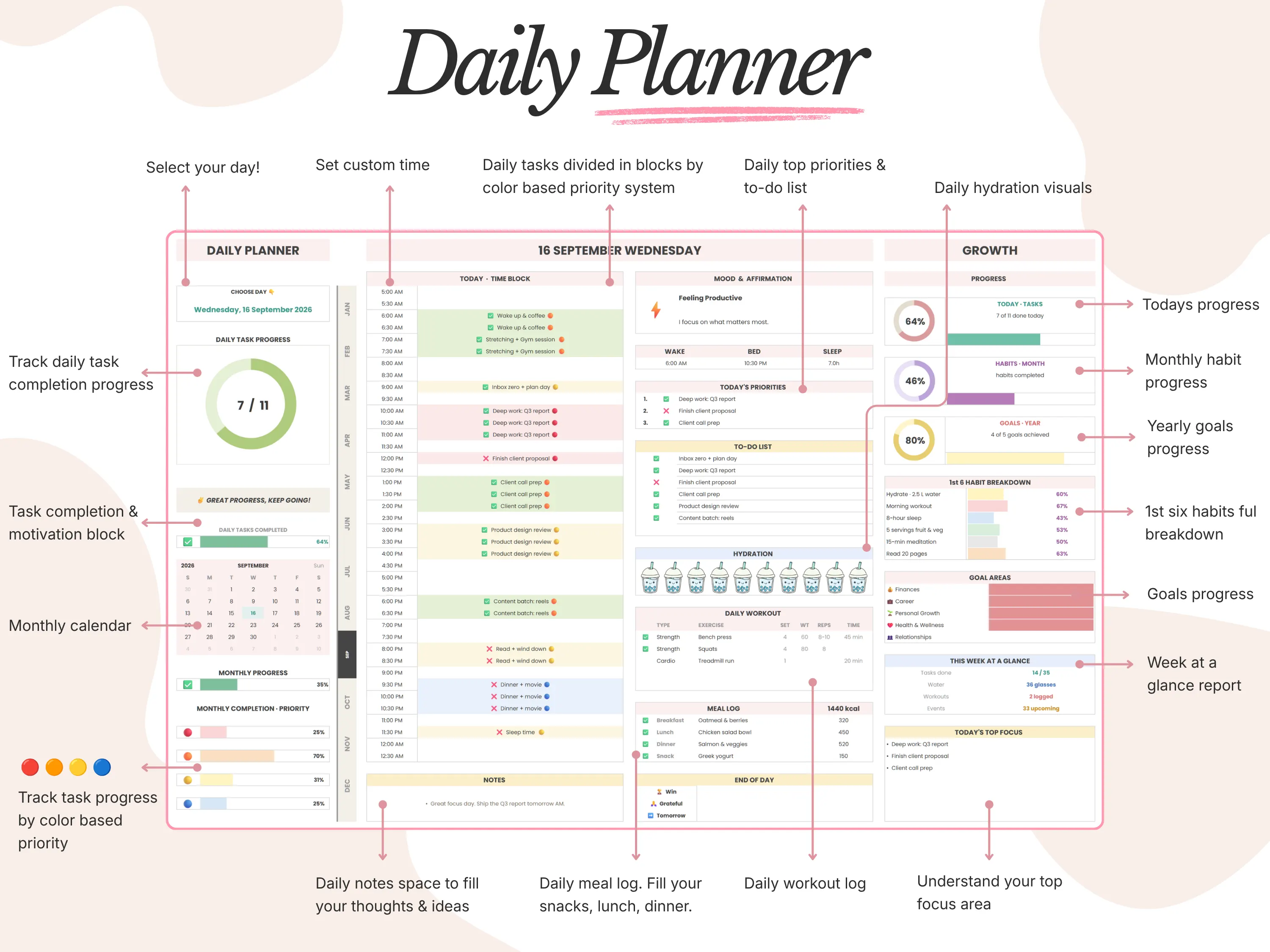
Quick answer: To time block in Google Sheets, list your day in 15 or 30 minute rows, give each block a task and a category, and color the categories with conditional formatting. Plan tomorrow’s blocks the evening before, then compare plan and reality at the end of the day. For a ready-made option, the 26/27 Daily Planner has custom time blocks color-coded by priority.
What is time blocking?
Time blocking means scheduling tasks into fixed chunks of time instead of keeping an open-ended to-do list. Each block has one job: deep work, email, a workout, a school pickup. When a block ends you move on, even if the task isn’t finished, and you decide where the rest goes.
It works because it forces two decisions early: what matters today, and how long it will really take. Most people underestimate the second one, and a time-blocked day shows it within a week.
Why use Google Sheets for time blocking?
It’s free. A free Google account is all you need.
It’s flexible. Change the interval, the hours or the colors in seconds.
It’s on every device. The same sheet opens on your laptop and in the Google Sheets app on your phone.
It can do the math. Count planned hours per category, or compare planned and actual time, with simple formulas.
The trade-off is that Sheets won’t send reminders the way a calendar app does. Many people pair the two: Sheets for planning and review, a calendar for alerts on fixed meetings.
How to build a time blocking template in Google Sheets
This takes about 15 minutes and gives you a reusable daily layout.
Set up the columns. In a new sheet, add the headers Time, Block, Category, Done and Notes in A1 to E1.
Create the time slots. Type
=TIME(6,0,0)in A2. In A3 enter=A2+TIME(0,30,0)and fill down to 10 p.m. UseTIME(0,15,0)for 15 minute blocks. Format column A as a time through Format > Number > Time.Add category dropdowns. Select C2:C33, open Data > Data validation, choose Dropdown and add categories such as Deep work, Meetings, Admin, Personal and Break.
Color by category. With C2:C33 selected, open Format > Conditional formatting, choose Text is exactly, type Deep work and pick a color. Repeat for each category. To color the whole row, apply a custom formula such as
=$C2="Deep work"to A2:E33.Add checkboxes. Select D2:D33 and choose Insert > Checkbox.
Measure your day. In a spare cell,
=COUNTIF(D2:D33,TRUE)/COUNTA(B2:B33)shows the share of planned blocks you finished. Format it as a percentage.Make one tab per day. Right-click the tab, choose Duplicate and rename the copies Monday, Tuesday and so on.
How to time block your day in 10 minutes
Start with fixed commitments. Meetings, classes and school runs are the walls everything else fits between.
Place your top 3 next. Put your most important work in the hours you focus best.
Batch small tasks. Email, messages and admin go into one or two short blocks instead of all day.
Add buffers. Leave 15 to 30 minutes free in the morning and the afternoon for things that run over.
Review at the end of the day. Tick what got done, move what didn’t and note any block that took longer than planned.
Time blocking methods worth trying
Task batching: Group similar tasks, like all calls or all errands, into one block.
Day theming: Give each day a focus, such as Mondays for planning and Fridays for admin.
Timeboxing: Set a hard limit for a task, like one hour on a report draft, and stop when it ends.
Plan vs. actual: Add an Actual column next to Block and write what really happened. After a week you’ll see where your time goes.
A faster option: the 26/27 Daily Planner
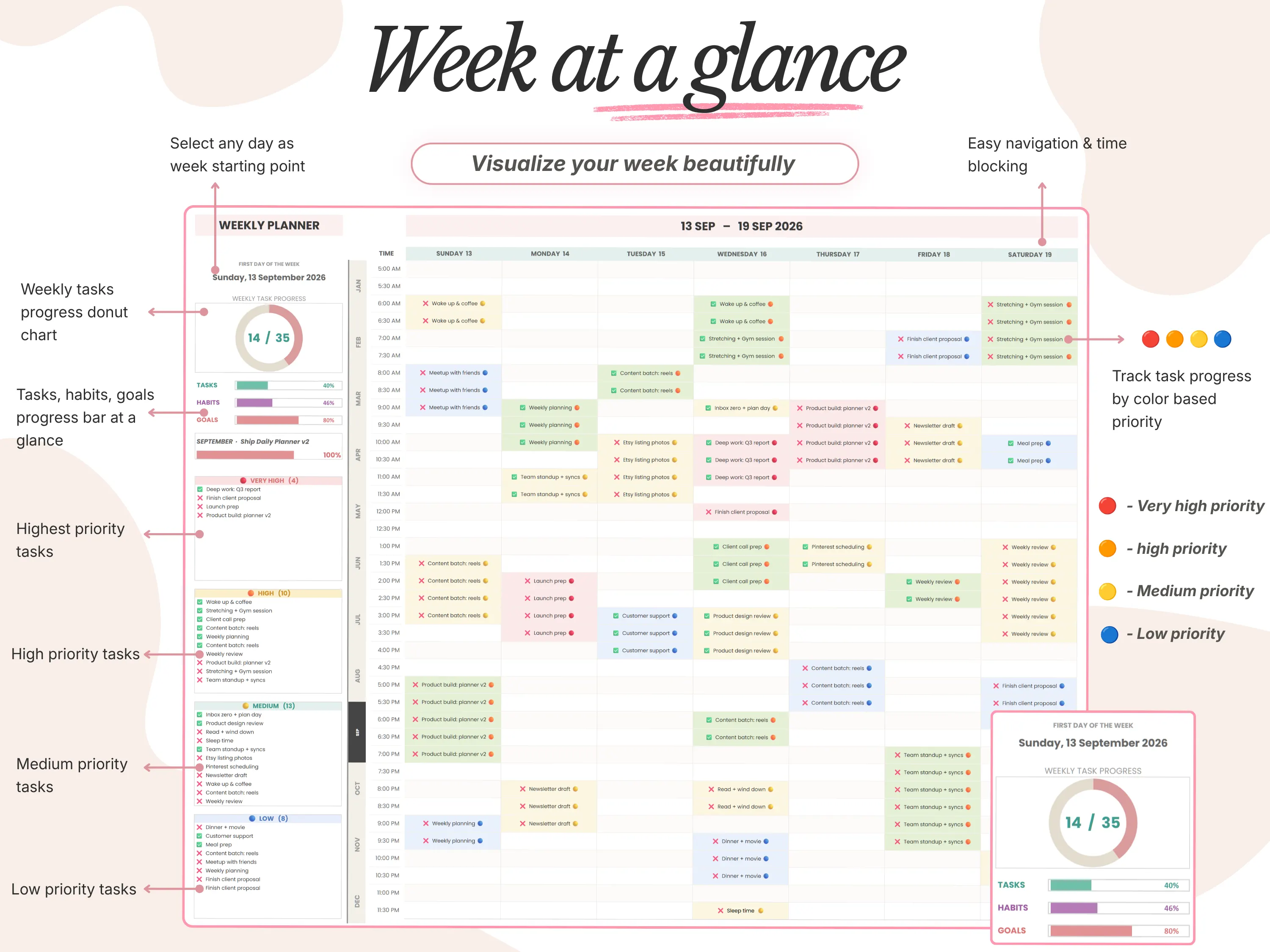
If you’d rather not build and maintain all of this, the 26/27 Daily Planner has time blocking built in. You set your own start and end times, every block is color-coded by priority, and your top 3 priorities and to-do list sit beside the schedule. Week at a Glance gives you a time-blocked week that can start on any day, so you can plan the whole week in one view.
It’s part of an 18-tab Google Sheet that also covers monthly calendars, habits and goals, for a one-time $12.
Common time blocking mistakes
Blocks that are too small. Ten-minute blocks for everything turn planning into a chore. Use 30 minutes as a default.
No breaks. A day of back-to-back blocks always falls apart. Schedule lunch and short resets.
Ignoring your energy. Hard thinking late in the afternoon rarely goes well. Match tasks to your energy, not only the clock.
Treating the plan as fixed. The point is to decide on purpose, not to be perfect. Moving blocks is part of the method.
Frequently asked questions
Does Google Sheets have a time blocking template?
Google Sheets has a basic weekly schedule template in its gallery that you can adapt. For color-coded priorities with daily, weekly and monthly views together, a dedicated planner template saves a lot of setup.
What interval should I use for time blocks?
Thirty minutes works for most people. Use 15 minutes if your day is full of short tasks, or one hour if you mostly do long, focused work.
Can I time block on my phone?
Yes. Open the sheet in the Google Sheets app. Planning is easier on a laptop, and ticking blocks off works well on a phone.
Is time blocking the same as timeboxing?
They’re close. Time blocking decides when you’ll do something. Timeboxing also caps how long you’ll spend on it. Many people use both.
How do I color code time blocks in Google Sheets?
Use Format > Conditional formatting with a Text is exactly rule for each category, or a custom formula such as =$C2="Deep work" to color the whole row.
The bottom line
Time blocking turns a wish list into a plan you can follow, and Google Sheets gives you a free, flexible place to do it. Build the template above in 15 minutes, or start with the 26/27 Daily Planner for time blocks, priorities and weekly views in one sheet. New here? Enter code WELCOME20 at checkout for 20% off your first order.